The short answer
There is no transfer, and there is no setting you have failed to find. Watch faces are installed on the watch, not on your account or your phone, so a new Galaxy Watch arrives with Samsung's preloaded dials and nothing else. Everything you had gets reinstalled.
That sounds worse than it is, for two reasons. What you paid for is not lost — purchases follow your Google account rather than the watch. And reinstalling is a minute a face, which for the five or six dials most people actually wear is one cup of coffee's worth of work, not an afternoon.
The one thing worth doing before the switch: long-press the old watch's dial and photograph the gallery as you swipe through it. Once the old watch is reset, that photo is the only record of what you had — and “what was that face called?” is much harder to answer later than it looks now.
What a Samsung backup does move
Setting up a new Galaxy Watch offers to restore from a backup of a previous one, and it is worth taking. It carries the configuration around the watch — your settings, much of your app data, tiles, and the general shape of how the watch was set up — so the new one feels like the old one within a few minutes.
What it does not do is populate the face gallery. A watch face is not a setting; it is something installed on the device, and the restore has no way to reach into a store or a phone app and re-fetch each one. So plan on the gallery being the part you rebuild by hand, and let the backup handle everything else.
The same is true after a factory reset, which is worth knowing because a reset is something people do to fix a problem. It clears the faces too, and they come back the same way they would on a new watch. That is one more reason a reset is a bad first response to a face that will not install — the causes worth checking first are all cheaper than this.
Faces you paid for
Anything bought through the Play Store belongs to the Google account that bought it, not to the watch it was installed on. Sign the new watch in to that account and paid faces reinstall at no charge, as many times as you like, on as many watches as you like.
The one thing to get right is which account. A watch signed in with a different Google account than the one that made the purchase will offer to sell you the face again, and it looks exactly like the purchase has been lost. It has not — the account is simply the wrong one. Check it before you buy anything a second time.
Subscriptions behave the same way but are worth a separate thought: if the faces you liked came from a platform with a monthly fee, that fee is what keeps them reinstallable. A lapsed subscription and a new watch together are what turns “I had forty faces” into starting over.
Finding them again is easier than browsing for them. The Play Store keeps a library of what an account has installed before, on the watch and on the phone alike, so a paid face is usually two taps away rather than something to search for by a name you half remember. It is the fastest route back to a gallery you had spent money on.
One thing genuinely does not come back, and it is worth expecting: how each face was set up. Colour choices, dial styles and the complication in every slot are configuration on the old watch, and reinstalling a face gives you the designer's defaults rather than your version of it. Redoing that is a minute a face in Galaxy Wearable, and it is the part people forget to budget for — which is another argument for the photo, since a photo records the complications too.
Faces that came from a phone app
Faces delivered by a phone app — ours and several others work this way — are installed on the watch just like any other, so the new watch does not have them either. What survives is the app on your phone and whatever list you kept in it.
In our app that list is your favourites. Tapping the heart on a face keeps it on the phone, which is the device you are keeping, so a new watch inherits the whole list and each one is one Apply away. There is nothing to restore and nothing to sign in to.
The honest limit: those favourites live on the phone and nowhere else. We hold no account and store nothing on our side, which is why the app never asks you to sign up — and it is also why a new phone starts the list over, even though a new watch does not. If you are changing both at once, the photo of the old gallery is what saves you.
What to do before you switch
Five things, done once, in this order. The first two take two minutes and are the ones that cannot be done later.
- Photograph the old watch’s gallery
Long-press the dial and take a photo of each face as you swipe past it. Two minutes now, and it is the only record of what you had that survives the reset.
- Note where each one came from
The watch’s own store, a phone app, or preloaded by Samsung. That decides how each one comes back, and it is much harder to work out afterwards from a photo.
- Favourite them in whichever app you used
A saved list rebuilds a gallery far faster than memory does. In our app, tapping the heart on a face keeps it on the phone, and the phone is the device you are keeping.
- Set the new watch up and update it first
Pair it, then check for a software update before anything else. A watch below One UI 8 Watch cannot install faces at all, and it is much less annoying to discover that before you start than halfway through.
- Reinstall from the list, newest favourites first
Work down the list rather than browsing. About a minute a face, and you can stop whenever the gallery feels finished — most people rebuild five or six of the twenty they had.
Step four deserves emphasis. A new watch is not automatically a current watch — it has been in a box since it was made, and the update it needs can be a large one. Which watches need which update is set out model by model, and doing it while you unbox is far less irritating than discovering it mid-rebuild.
Rebuilding, and why it is quick
A gallery feels like a big thing to lose and is a small thing to rebuild, because almost nobody wears twenty faces. Rebuild the ones you actually used and let the rest go; a new watch is a reasonable moment to stop carrying dials you swiped past for a year.
From our catalogue it is roughly a minute each — pick, Apply, and it arrives on the watch over Bluetooth and switches itself on. Six faces, six minutes, and none of them need an account or a payment.
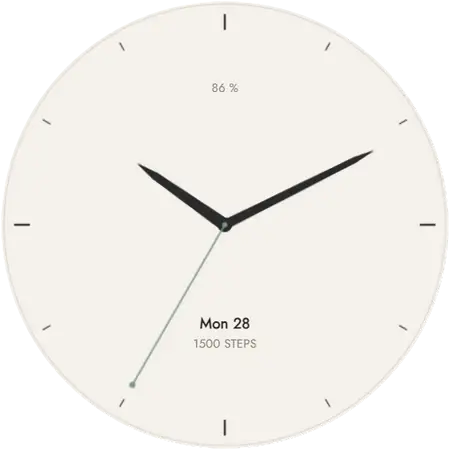
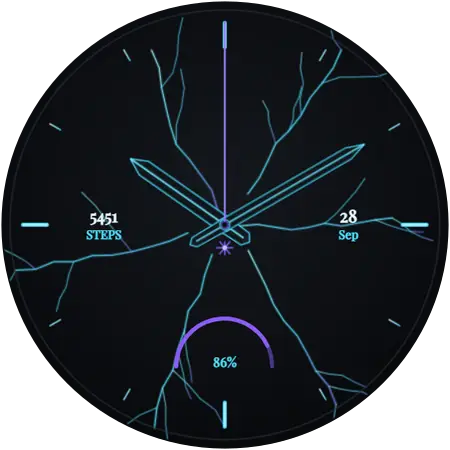
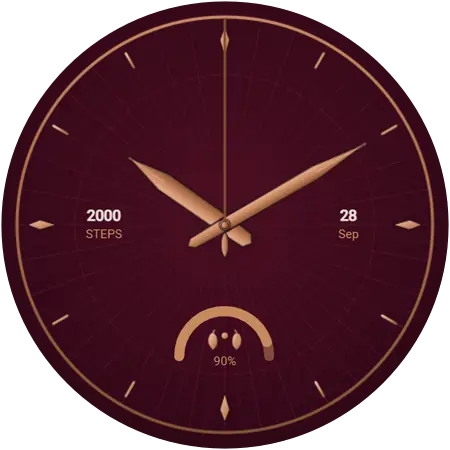
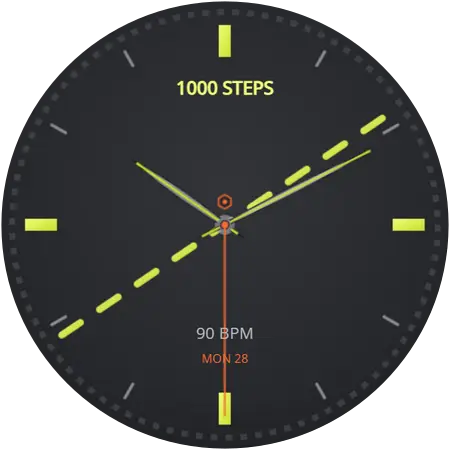
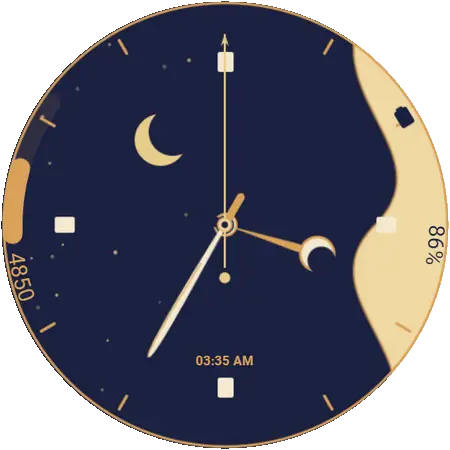
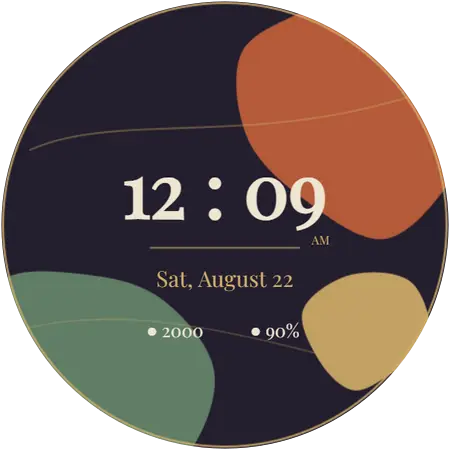
If the new watch is a different size or shape from the old one, this is also the moment to reconsider rather than replicate. A dial that suited a 40 mm screen can look sparse on a 47 mm one, and a Classic's rotating bezel flatters faces with a marked outer track in a way a flat-sided case does not. The whole catalogue previews at full size, so it is quicker to judge on a laptop than by installing.
The old watch
Do the wipe last, and only once the new watch is genuinely working. A factory reset — Settings → General → Reset on the watch, or from Galaxy Wearable while it is still paired — is what removes your accounts and data before the watch is sold or handed on. Unpairing alone does not.
Keeping it instead is a perfectly good option, and faces are one of the reasons: a second watch can run a completely different set of dials from the same catalogue at no extra cost, because faces are per watch rather than per licence. A retired watch on the nightstand with a dark, minimal dial is a genuinely nice thing to have.
And if the old watch is a Tizen model — a Watch 3 or anything from the Gear range — the move to a Wear OS watch is the moment its face catalogue stops being frozen. That is the one upgrade where the gallery genuinely does get better rather than merely starting again.
Questions
Can I transfer my watch faces from an old Galaxy Watch to a new one?
Not directly. Watch faces are installed on the watch itself, so a new watch starts with only Samsung’s preloaded dials and everything else is reinstalled. What carries across is your entitlement to them — anything you paid for on your Google account can be downloaded again at no cost.
Does Samsung’s watch backup include watch faces?
A backup restores settings, app data and much of your configuration, but a new watch still needs its faces installed. Treat the backup as covering the setup around the dial rather than the dial itself, and plan on reinstalling the faces you actually wear.
Do I have to pay again for watch faces on a new Galaxy Watch?
No, as long as you sign the new watch in to the same Google account you bought them with. Play Store purchases are tied to the account, not the device, so a paid face reinstalls at no charge. Buying with one account and signing in with another is what makes people think they have lost a purchase.
Will my watch faces come back if I factory reset my Galaxy Watch?
No. A factory reset clears installed faces along with everything else, and the preloaded Samsung dials are what is left. Reinstalling is the same process as on a new watch, which is why it is worth photographing the gallery before you reset.
Are my favourite faces kept if I change my watch?
In our app, yes — favourites are stored on the phone, so a new watch inherits the whole list and each one is an Apply away. A new phone is the case that loses them: there is no account and nothing is stored on our side, which is also why the app never asks you to sign up.
Can I install the same watch face on two Galaxy Watches?
Yes. Faces are installed per watch, so applying the same one to a second watch is an ordinary install rather than a transfer, and there is no limit on how many watches a free face goes on.