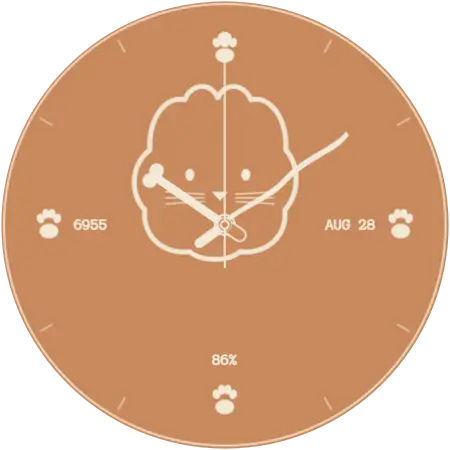
Pets watch face
Aquarium — pet watch face for Galaxy Watch
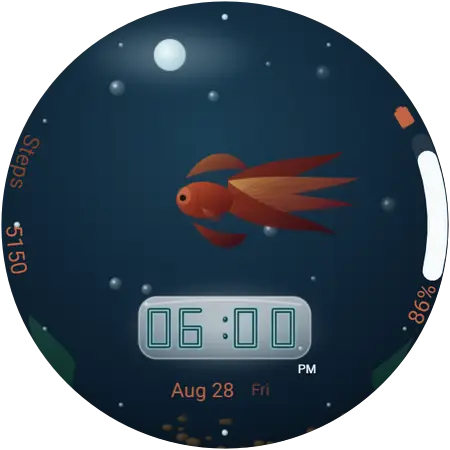
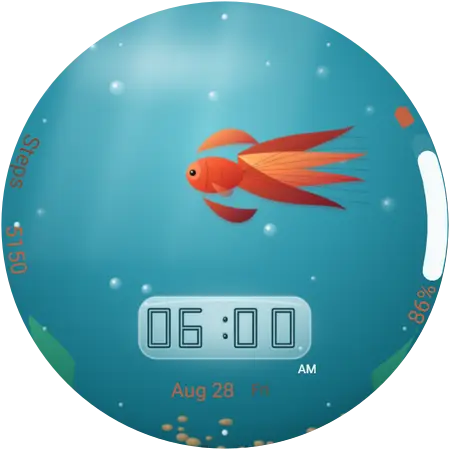
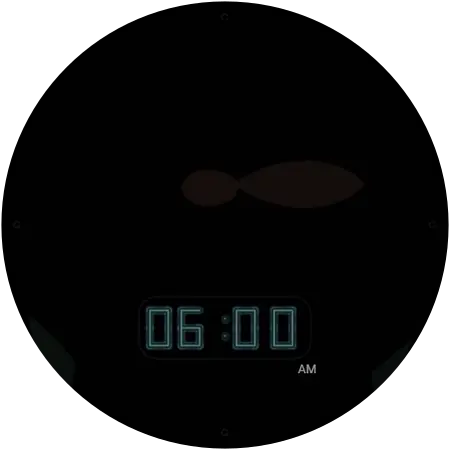
Aquarium — a betta drifts through sunlit water by day, settles still and dim by night. Time glows on a frosted glass plaque in soft tube-light numerals, bubbles always rising past it. No hand ever crosses the fish. A tank that keeps its own quiet time.
- Free — no account, no sign-up
- Applies over Bluetooth, no PC or cable
- Needs Wear OS 6 or newer on the watch
More views of Aquarium
Will Aquarium work on my Galaxy Watch?
What matters is the software on the watch, not which model it is. These faces install through Watch Face Push, which arrived with Wear OS 6 — so any Galaxy Watch running Wear OS 6 or newer can use Aquarium, and one running anything older cannot, however new the hardware is.
| Watch software | Wear OS 6 (One UI 8 Watch) or newer — the requirement is the software, not the model |
|---|---|
| Supported watches | Galaxy Watch 4 and newer — Watch 4, 5, 6, 7, 8 and 9, plus Watch FE, Watch Ultra and Watch Ultra 2, including every Classic and Pro variant |
| Already on it | Galaxy Watch 8 shipped with it, Watch 9 and Watch Ultra 2 ship with the newer Wear OS 7, and Samsung finished the rollout to every older eligible watch in December 2025 |
| Not supported | Galaxy Watch 3 and older, and Gear-series watches — these run Tizen, not Wear OS |
| Still on older software? | Update the watch from the Galaxy Wearable app on your phone — One UI 8 Watch is available for it |
| Phone | Android, paired with the watch in the Galaxy Wearable app |
| Price | Free. No account, no sign-up |
Not sure which version you have? On the watch: Settings → About watch → Software information.
How to install Aquarium on your Galaxy Watch
About a minute, start to finish, and the watch stays on your wrist the whole time.
- Install Galaxy Watch Faces on your phone
Get the free app from Google Play. There is nothing to sign up for.
- Open it next to your watch
The app finds the Galaxy Watch already paired with your phone. Keep both nearby and Bluetooth on.
- Find Aquarium and tap Apply
Browse or search for Aquarium, open it, and tap Apply. The first time, the watch asks for permission — accept it on the watch.
- The face installs over the air
The face transfers to the watch wirelessly and switches on by itself. No PC, no cable, no file transfer.
Get Aquarium
It is in the free Galaxy Watch Faces app, alongside the rest of the pet collection.
More pet watch faces
From the same collection — see all 12 pets faces.
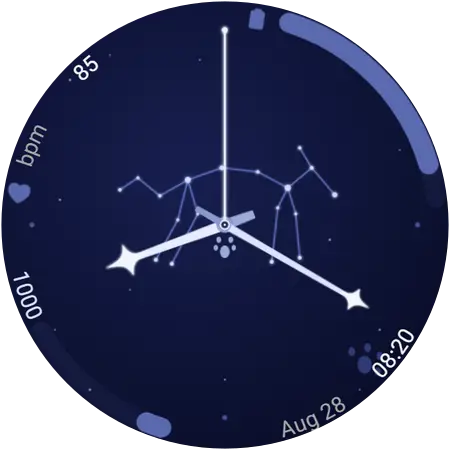
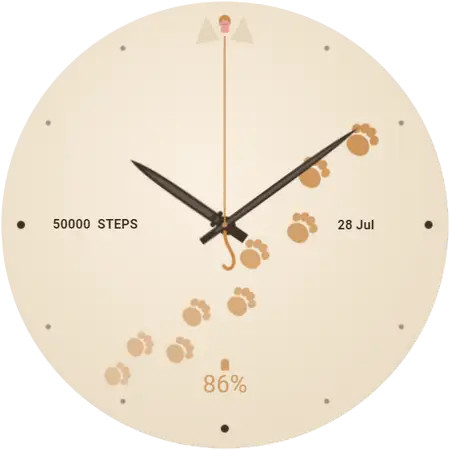
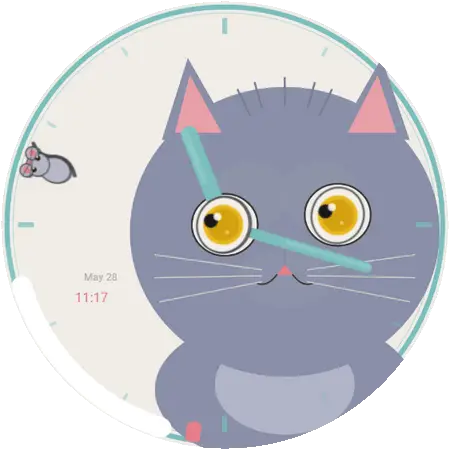
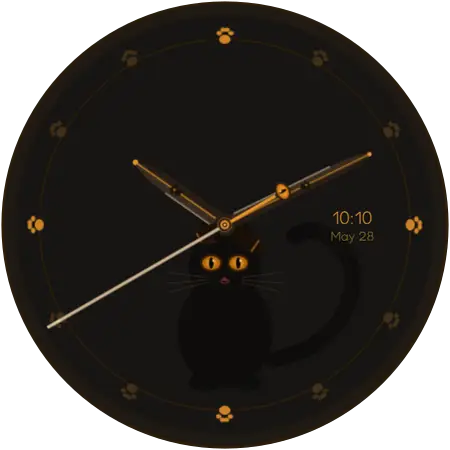
Browse the whole catalogue · added 2026-08-01